Pauseur
Breathe Before You Scroll
Contact Us
We will reply to your email within 1–2 business days
Online Feedback
Submit Anonymous FeedbackLegal Information
Setup Guide
Using "TikTok" as an Example
The following demonstrates how to use the iOS Shortcuts app to set up automation, so that opening a target app automatically triggers a Pauseur breathing exercise.
- 1
Open the Shortcuts App
Tap the "Open Shortcuts App" button at the bottom of this page. If you've deleted it, reinstall from the App Store.
- 2
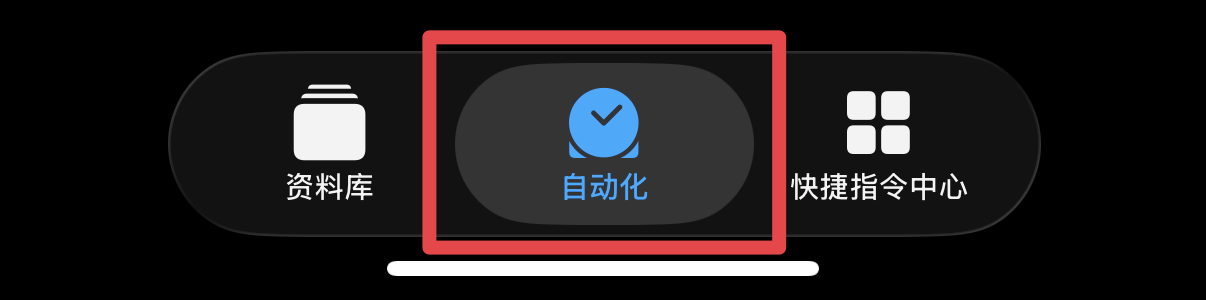
Create a New Automation
Switch to the "Automation" tab at the bottom, then tap "New Automation" or the + button.
- 3
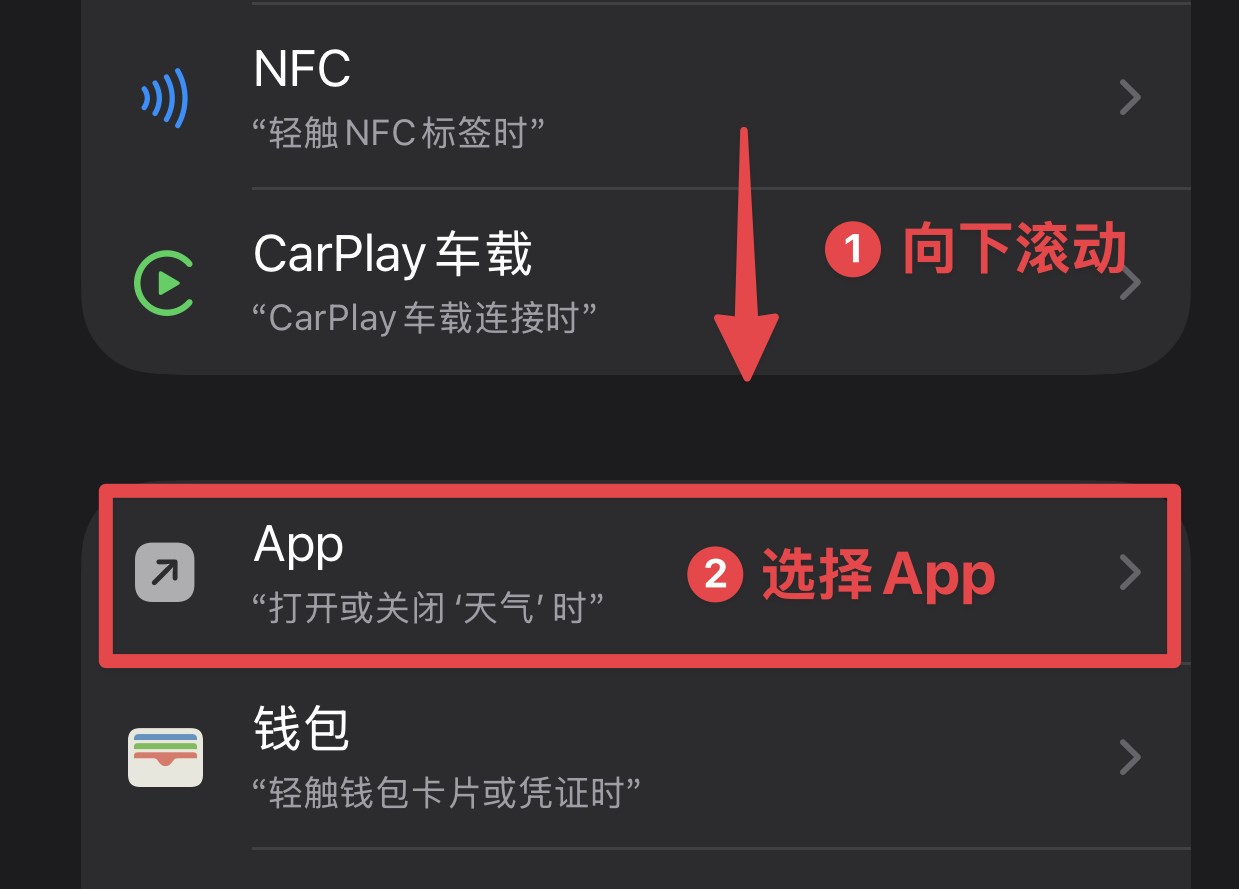
Set the Trigger
Scroll down and select "App".
- 4
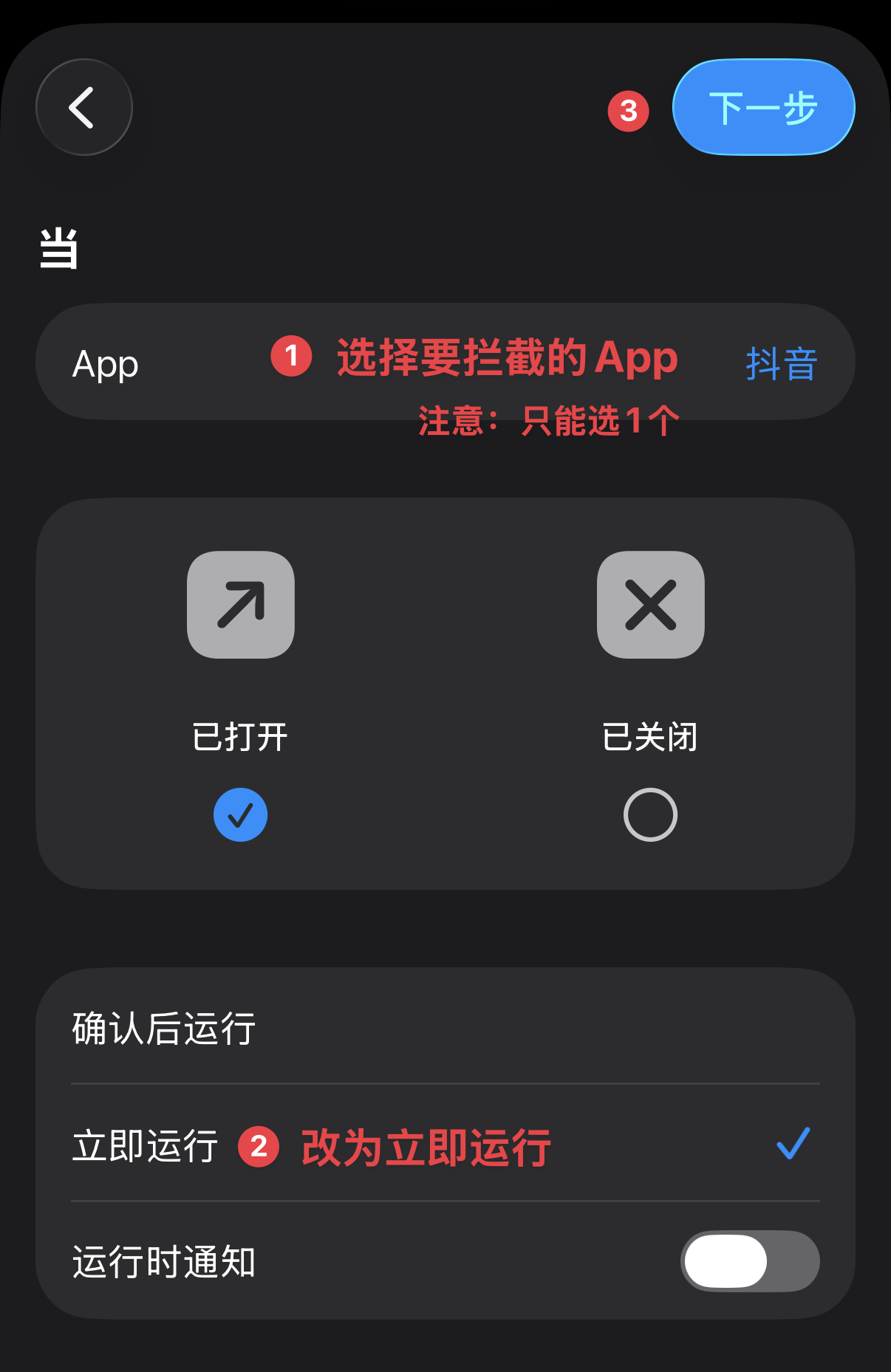
Configure the Target App
Choose your target app → set to "Run Immediately" → tap "Next".
- 5
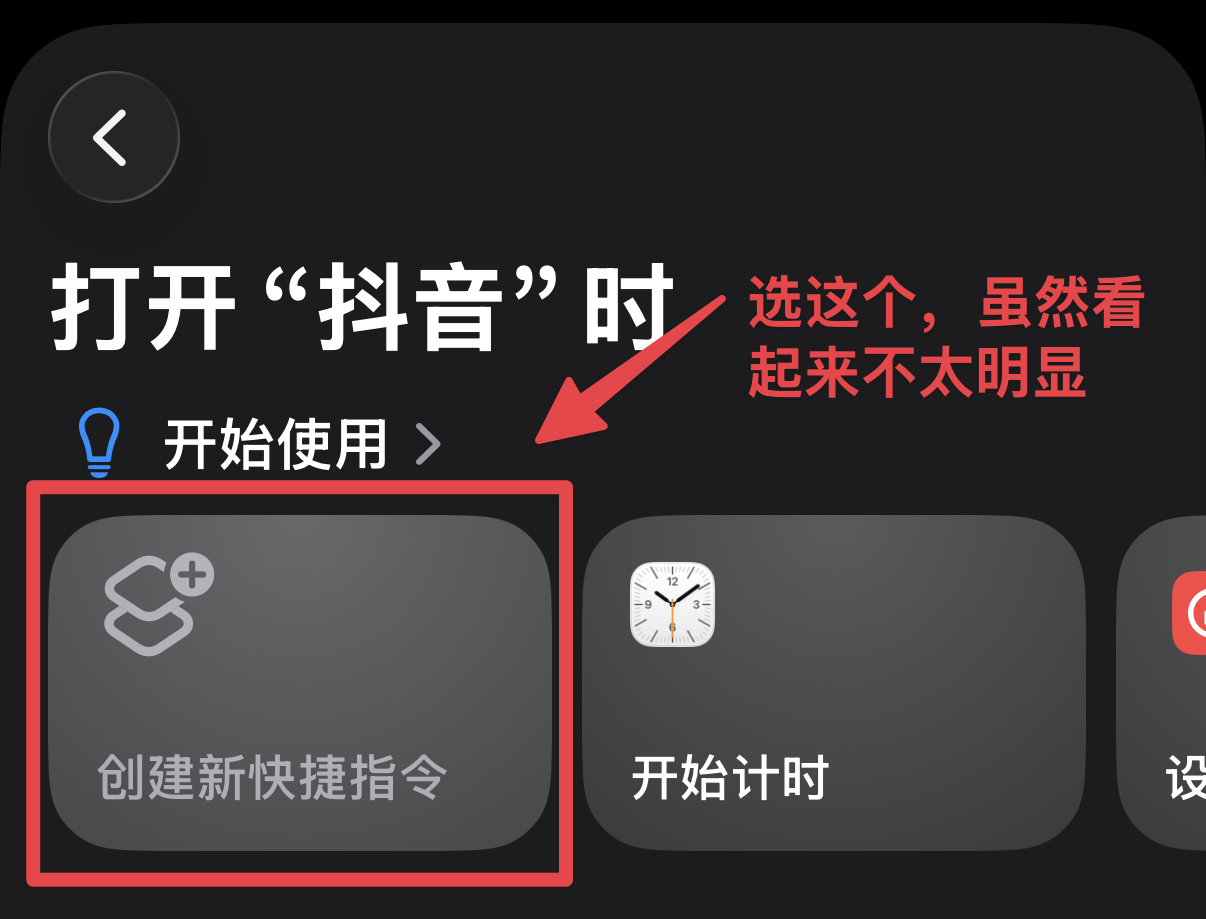
Create an Action
Select "New Blank Automation".
- 6
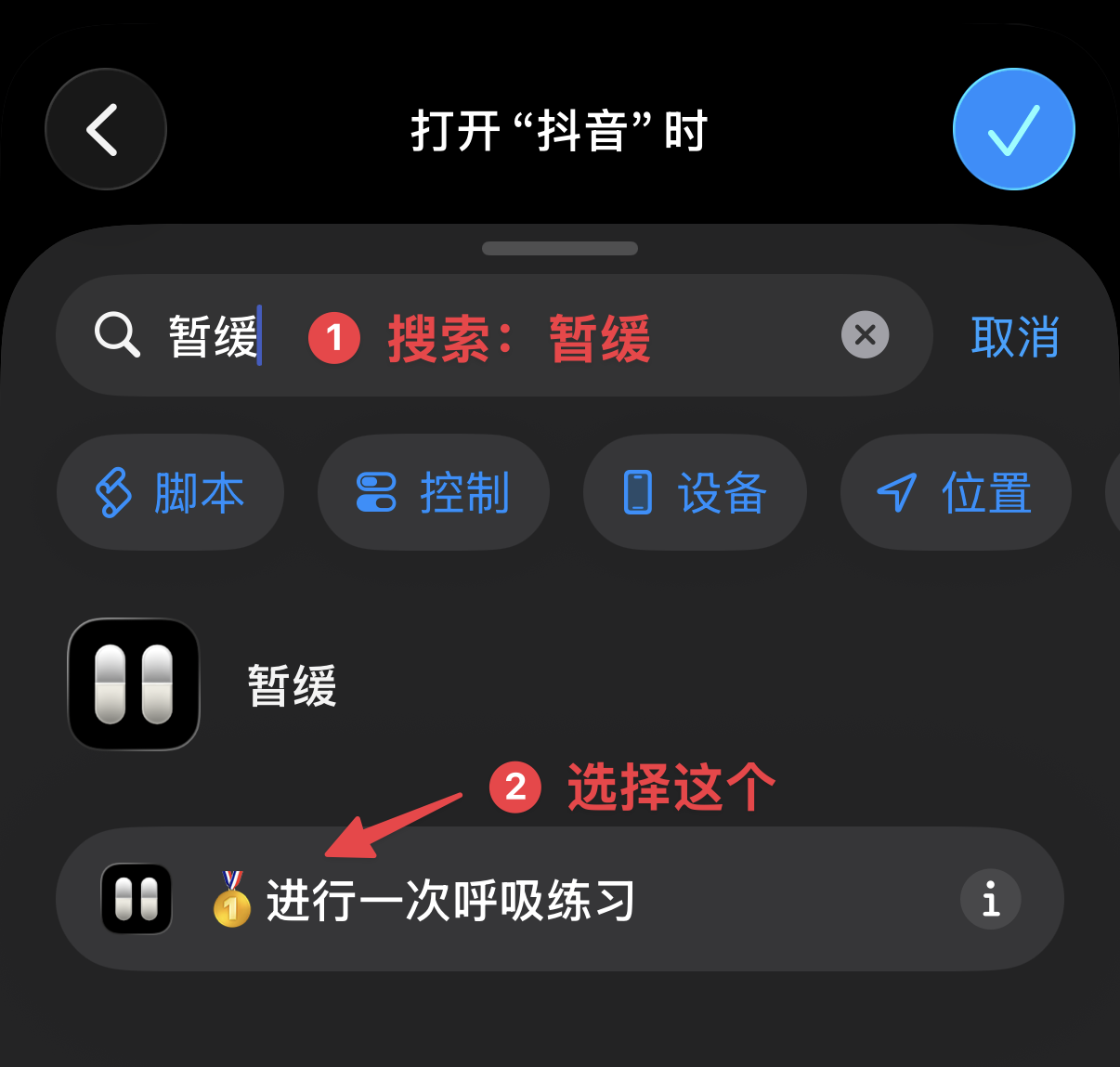
Configure the Action
Search for "Pauseur" → select "Start a Breathing Exercise".
- 7
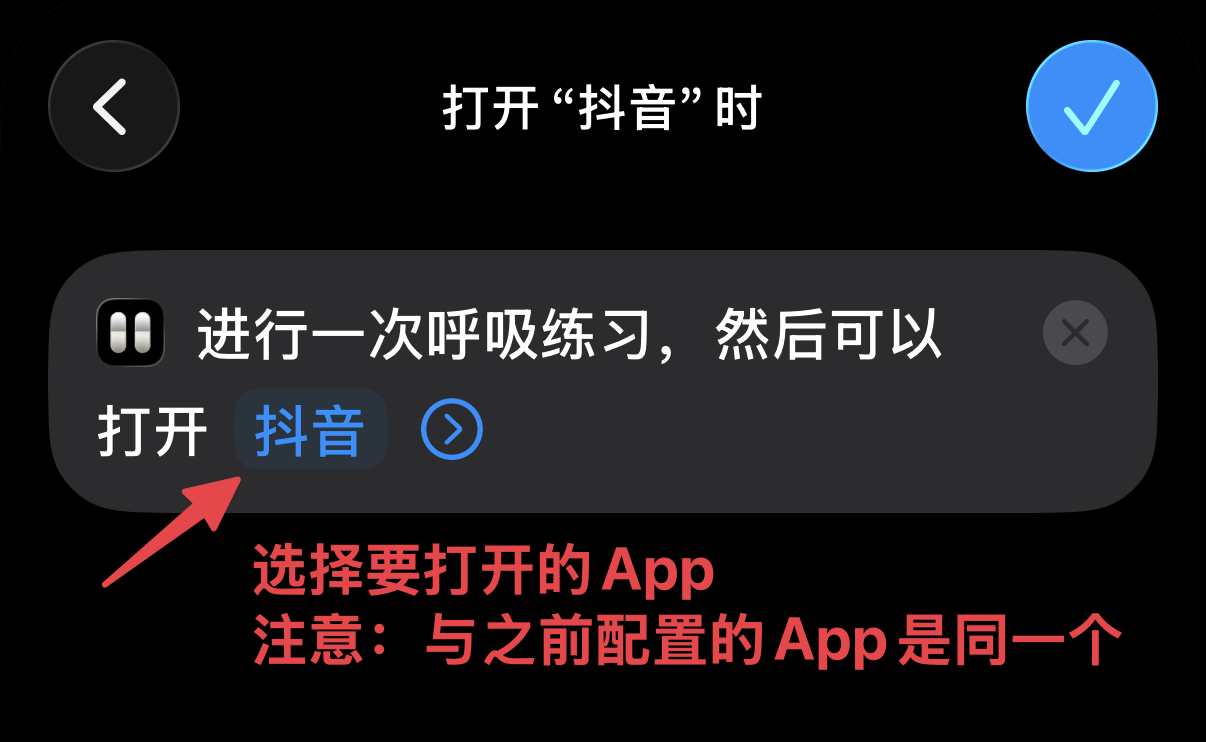
Specify the Target App
Choose the same app as in Step 4, then tap the checkmark to save.
- 8
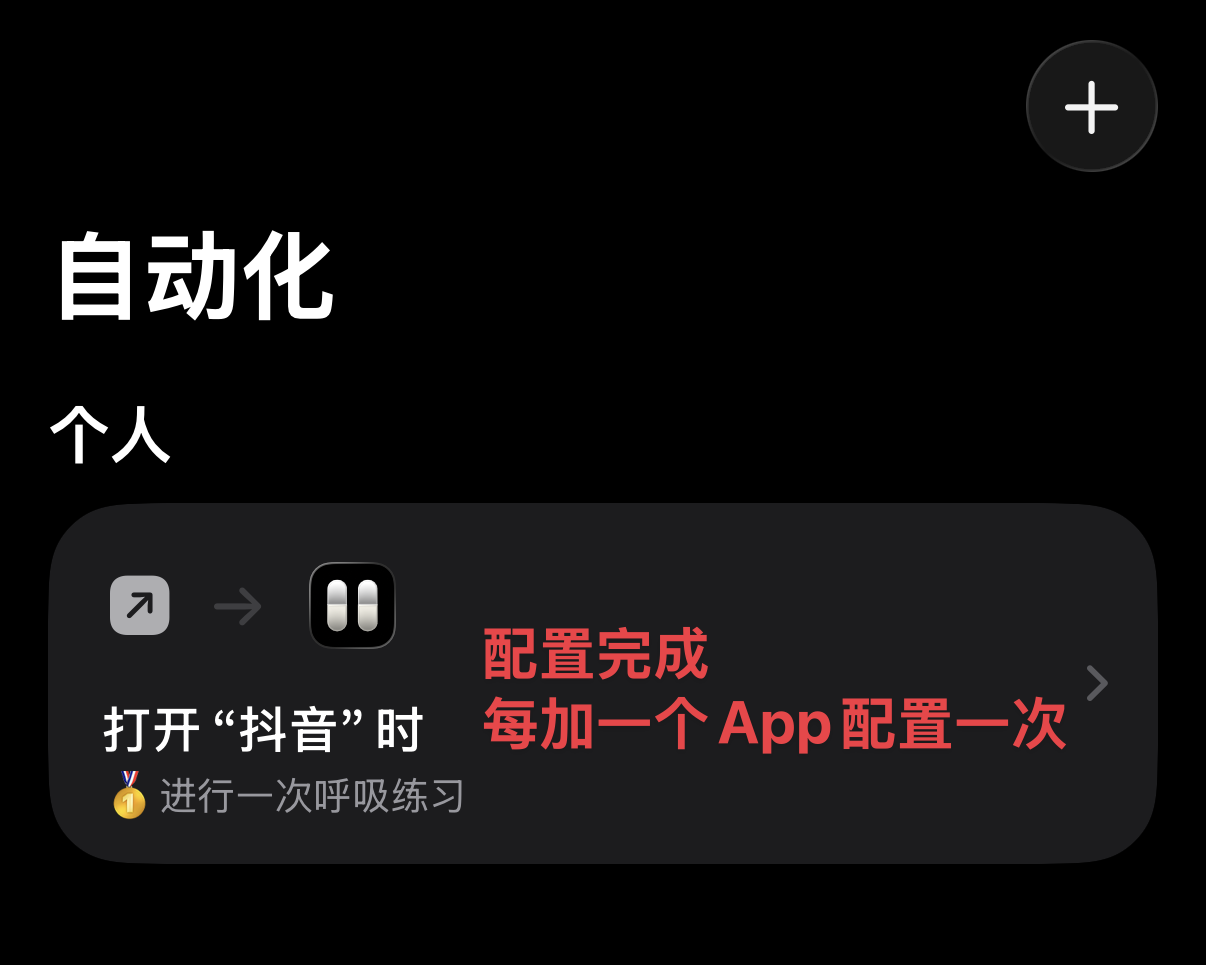
Setup Complete
Go back to the home screen and open the target app to try it out.